Service Client
Purpose
Service declaration, as one of the crucial concepts of Orchestra, is used either to expose an interface to the external world (server mode) or to use interfaces available outside of Orchestra (client mode). Note that when a service declaration is used in server mode, you also have to implement the service declaration in the Service Provider. However, we are using service declaration in most cases when we want to create a service client.
Creation
In order to manually create a Service Client:
-
Click on the plus icon located on the bottom-left of the screen.
-
Select Services.
-
Select Service Client.
-
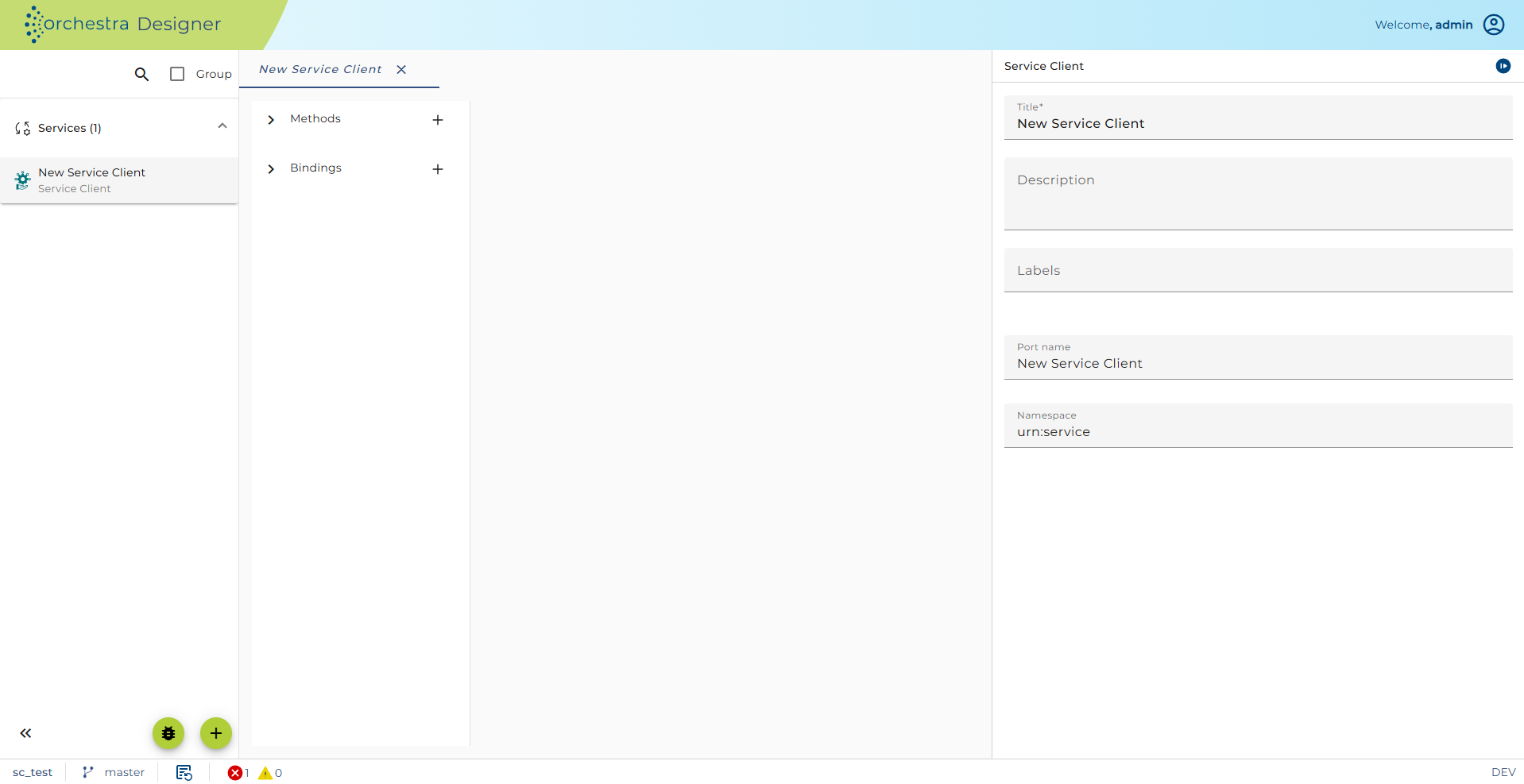
The configuration panel for the new service client is available on the right side.
Importing WSDL
An alternative and more convenient way to create a service declaration (compared to manual creating) is to import a WSDL file. Importing WSDL will not only create the service declaration, but will also create message types and XML Schema based on the WSDL. Additionally, methods and bindings that are defined within WSDL will be created with settings you choose.
To import WSDL:
-
Click on the plus icon located on the bottom-left of the screen.
-
Select 'Import'.
-
Select 'Service Declaration - WSDL Import'.
-
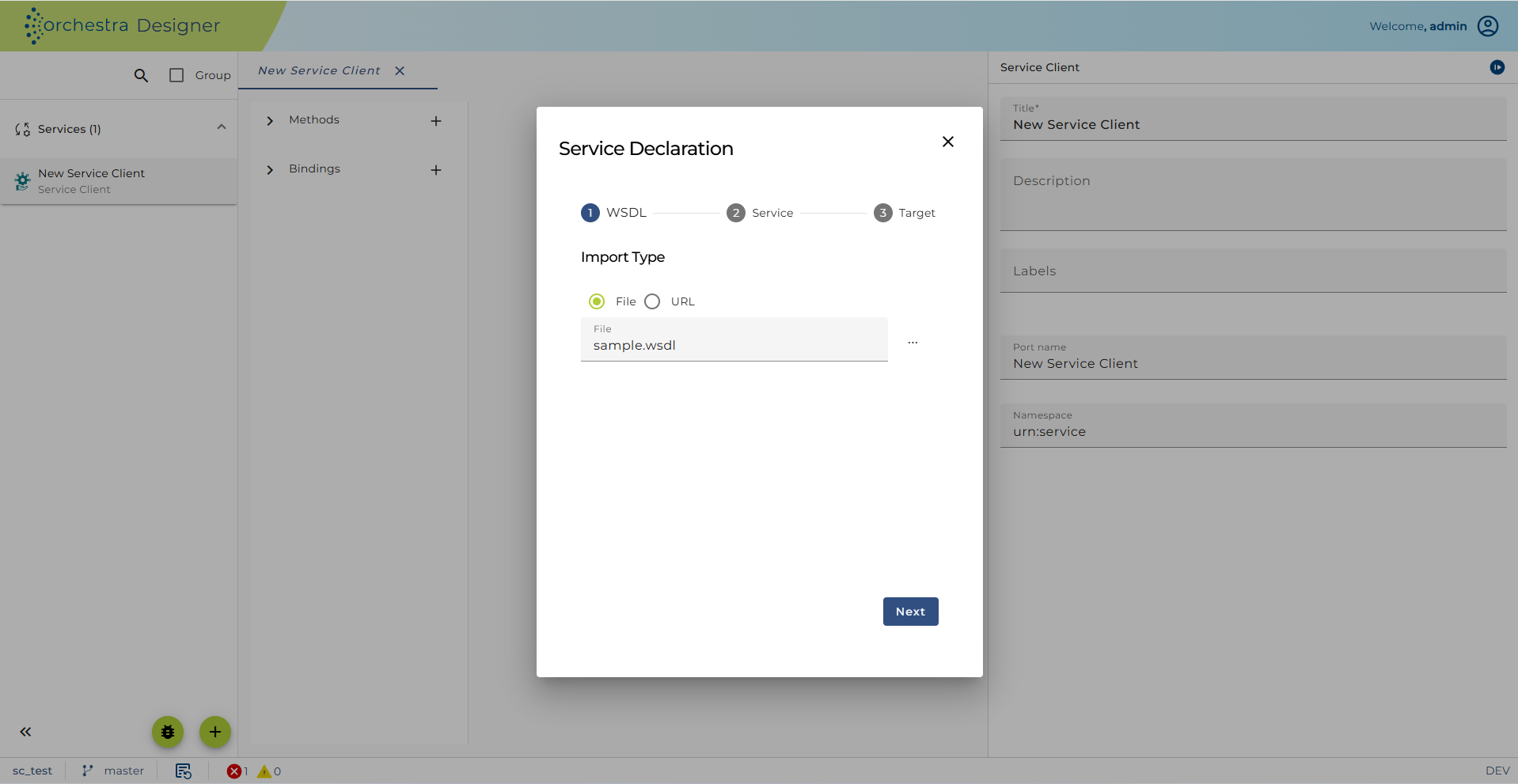
Select a WSDL file.
Note: that WSDL import can be done both from file and from URL
-
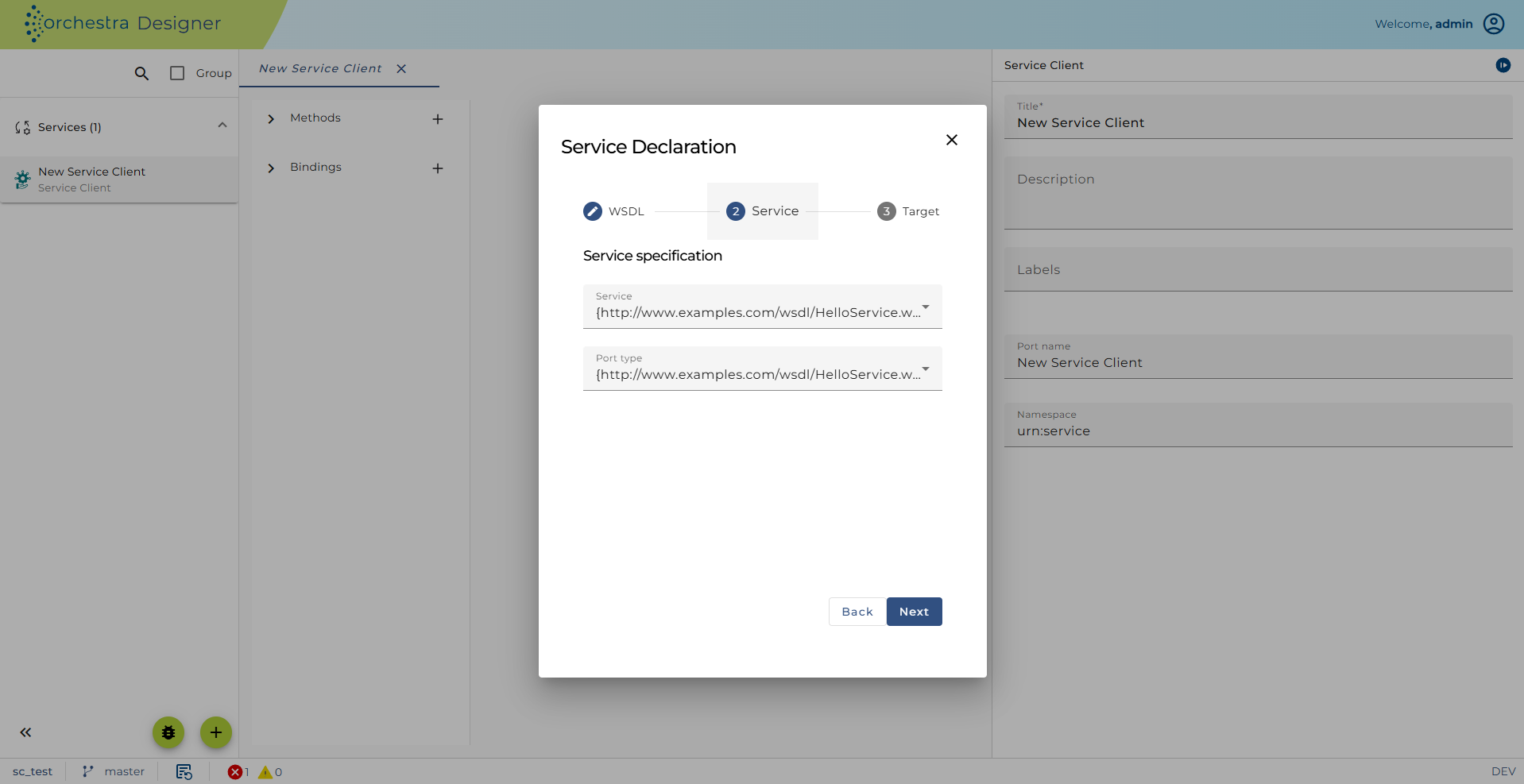
In 'Service', users can specify Service and Port type to be used:
-
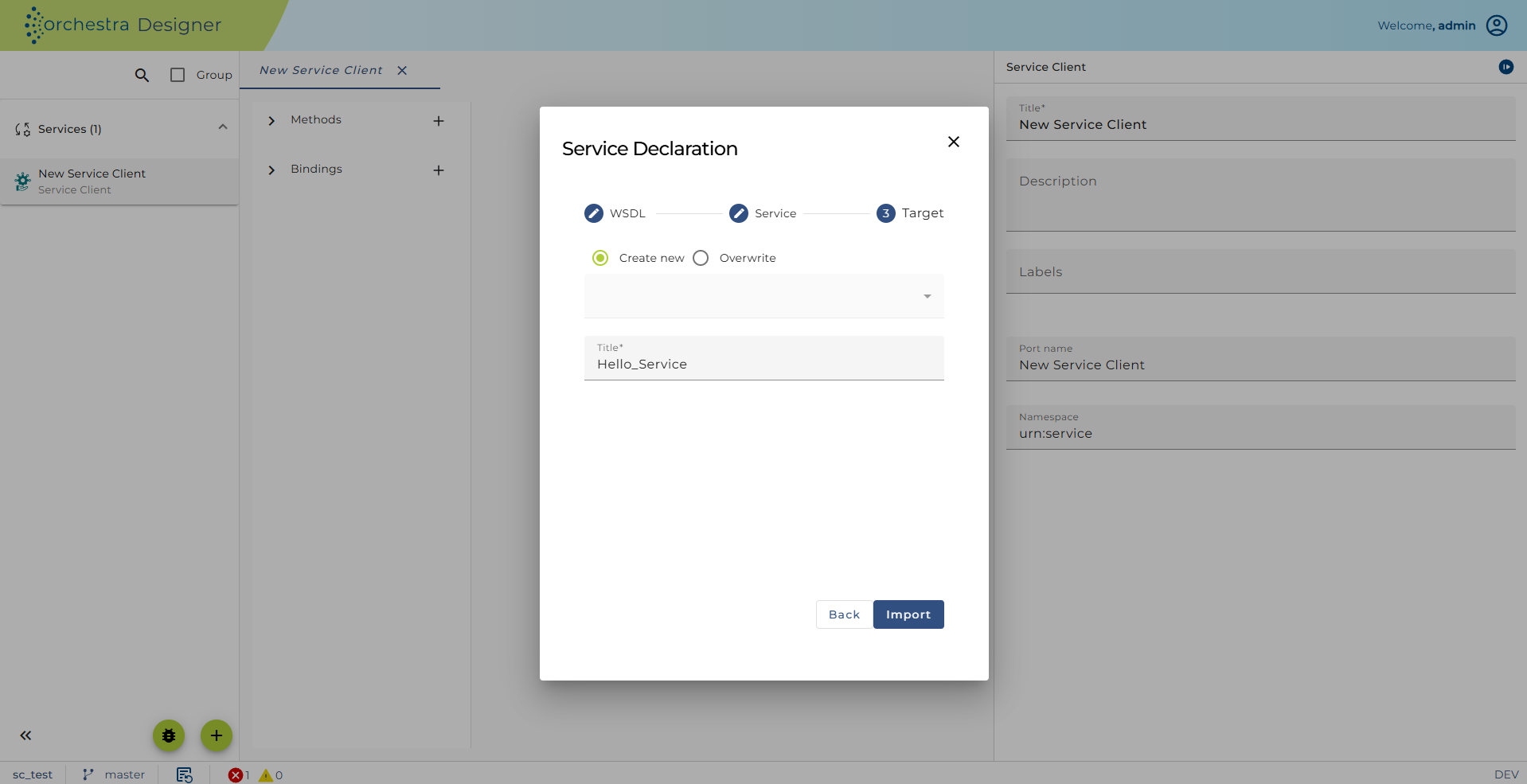
Add the title of the Service Client, select 'Create new' and click import.
Creation of message types, XML Schema, and environment entries is done automatically. If you look on the left-side panel, the following is shown:
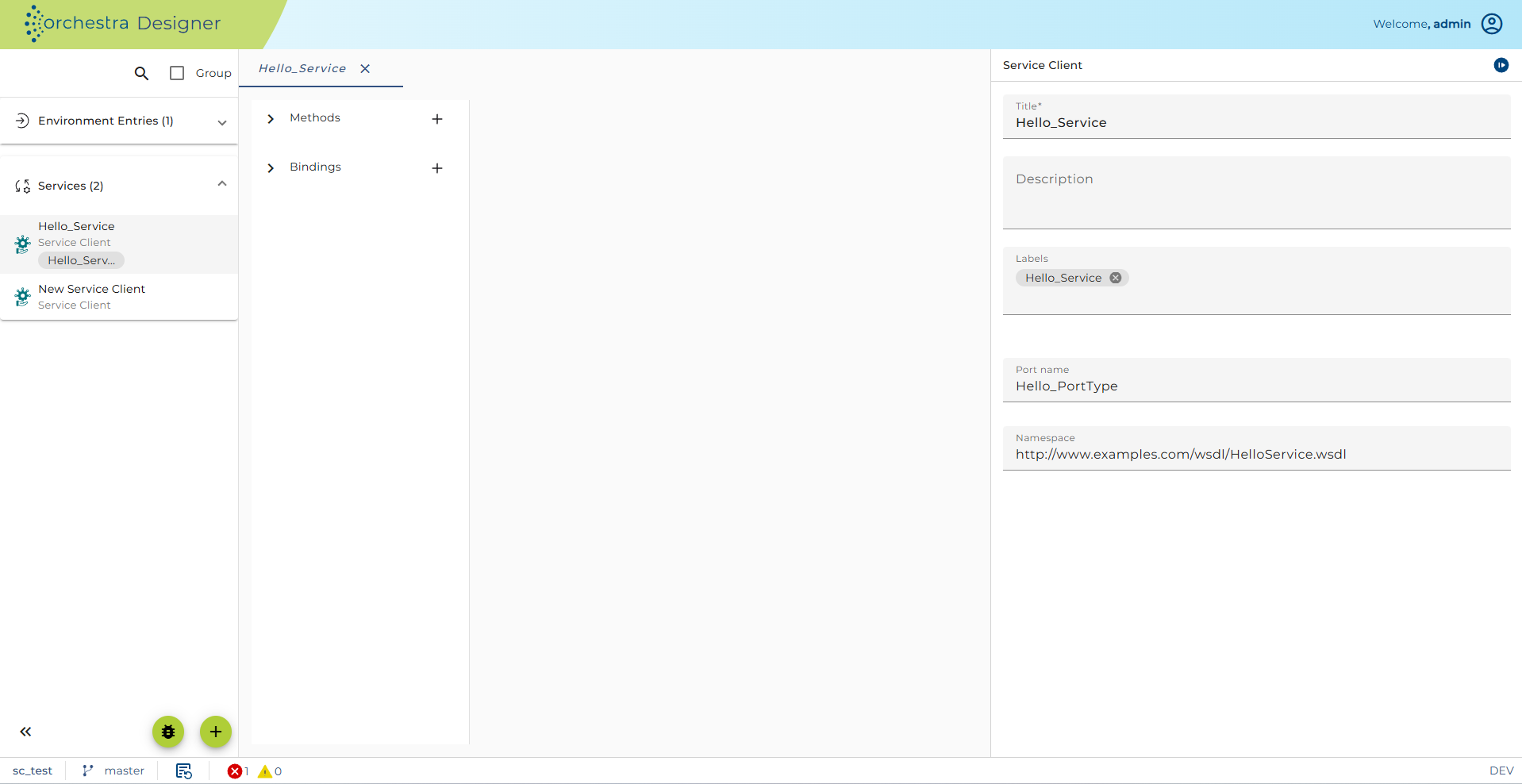
All methods defined in WSDL are created and also bindings that use the methods. Details can be found in Methods and Bindings sections.
Overwriting an existing WSDL
To overwrite an existing WSDL:
-
Click on the plus icon located on the bottom-left of the screen.
-
Select 'Import'.
-
Select 'Service Declaration - WSDL Import'.
-
Select a WSDL file.
Note: that WSDL import can be done both from file and from URL
-
In 'Service', users can specify Service and Port type to be used:
-
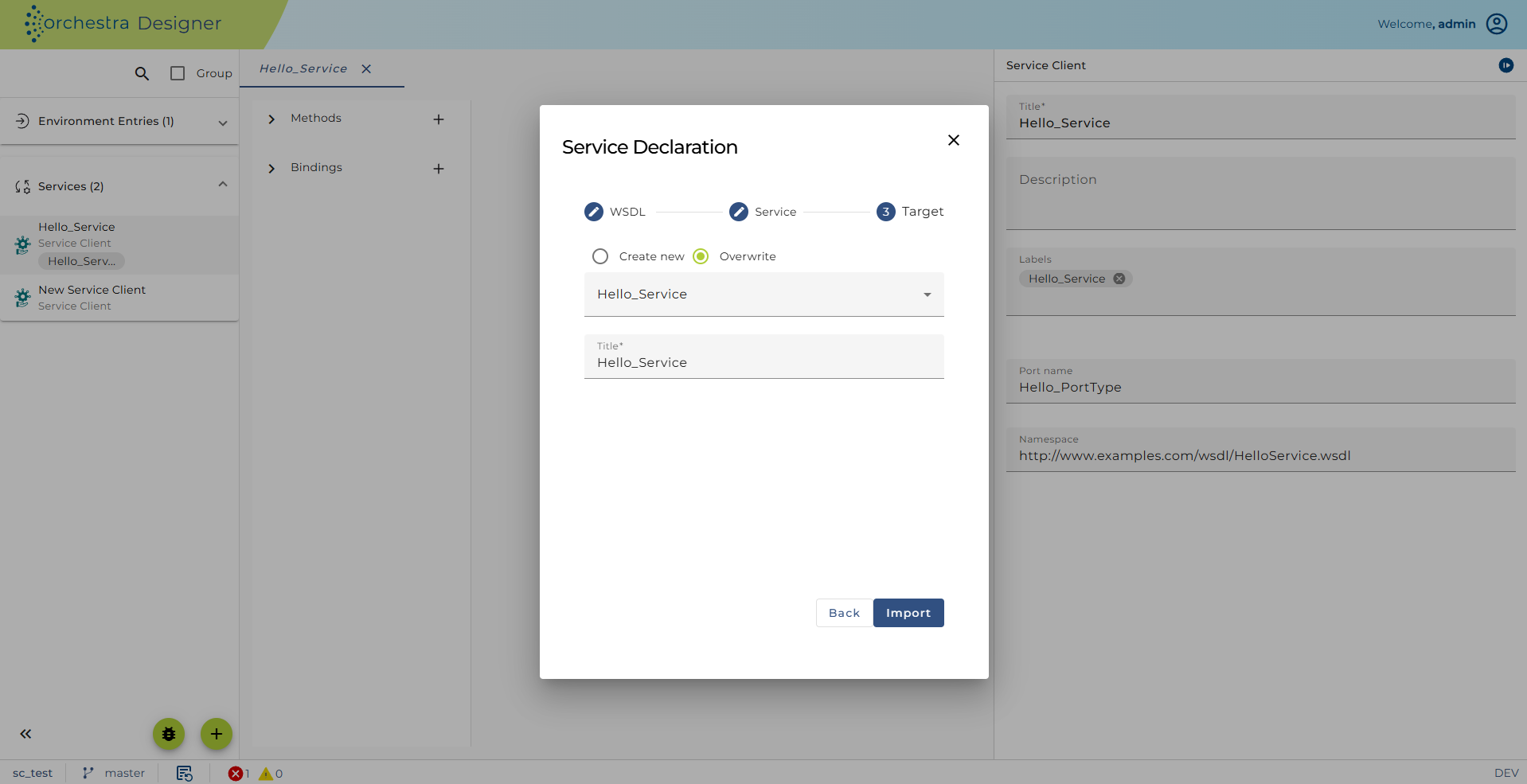
Enter a title for the Service Client, check Overwrite, expand the dropdown menu, and select the Service Client to be overwritten.
-
Click Import.